YouTube transcripts allow you to turn video content into readable text for notes, subtitles, or content reuse. However, not every video on YouTube provides a transcript, and availability depends on whether captions are enabled.
In this guide, you’ll learn all working methods — from using YouTube’s built-in transcript feature to AI tools that transcribe YouTube video to text when none are available.
Table of Contents
Part 1. How to Find and Copy a YouTube Transcript
Desktop Method
On desktop, open a YouTube video and navigate to the description area just below the player. You will see a brief preview of the text ending with a "...more" link. Click this to reveal the full description.
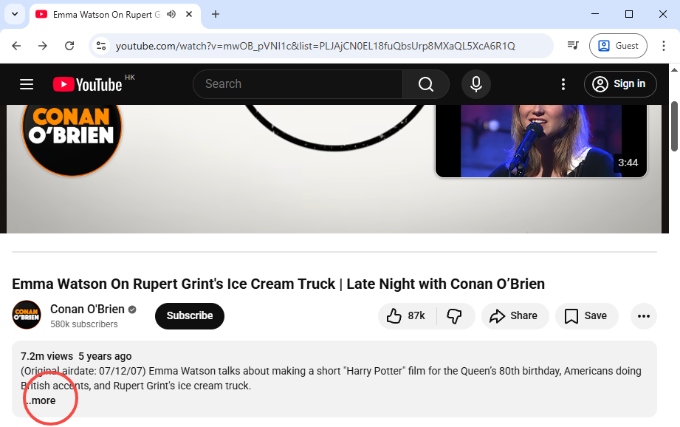
Once expanded, look for the "Show transcript" button (this typically appears if the video has captions enabled). Clicking this will open the transcript panel on the right side of the video player, where you can switch between Timeline and transcript.
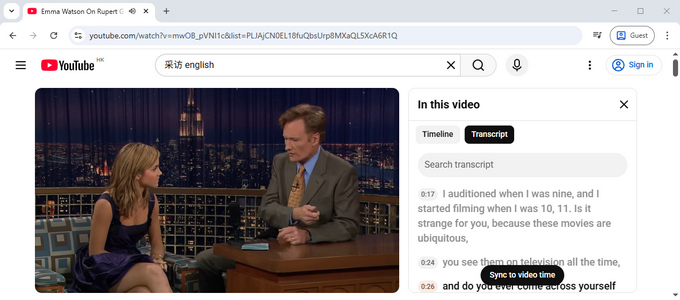
From there, you can manually select and copy the transcript. However, there is no "download all" option, so copying long videos can be slow and requires scrolling line by line.
In general, this feature appears more often on educational, news, or English-language videos, but is often missing on smaller channels or videos with disabled captions.
Mobile Method (iPhone & Android)
On mobile devices, the transcript feature is limited and often hidden. Even when captions are available, the transcript view may not appear in the same way as desktop.
Copying text on mobile is also restricted. Users may only select small portions of captions, making it impractical for long videos such as podcasts or lectures.
Because of these limitations, most users switch to desktop or use YouTube video transcript generators when working on mobile.
Why YouTube Doesn’t Allow Downloads
YouTube does not offer transcript downloads. Even when a transcript exists, it is designed for viewing, not exporting. This restriction helps keep content within the platform and prevents bulk reuse.
Part 2. How to Get a YouTube Transcript When It’s Not Available
Not all YouTube videos have transcripts — especially when captions are disabled or unavailable.
In this case, the most reliable way to get a transcript is to use AI tools that convert YouTube to text. This works for almost any video, even without subtitles.
Below are the best tools to transcribe YouTube video to text, along with simple step-by-step instructions for each.
Hicoo AI – Fast & Flexible YouTube Transcript Generator 🔥
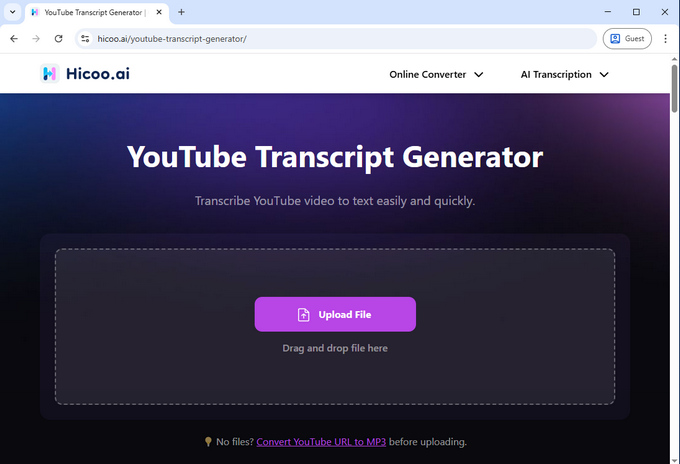
Hicoo AI is a practical and flexible solution for generating YouTube transcripts, especially when captions are missing or unavailable. Instead of relying on YouTube subtitles, it works by converting YouTube video to text with AI-powered speech recognition, delivering up to 99% accuracy.
It supports long-form content up to 3 hours or 2GB, works with 100+ languages, and allows export in TXT, SRT, VTT, and DOCX formats. It also supports music videos, making it possible to transcribe lyrics as well.
How to Get a YouTube Transcript Without Subtitles? Follow these steps:
- Paste the YouTube URL into the Hicoo URL to MP3 converter to extract the audio.
- Upload the audio file into the YouTube transcript generator.
- Within seconds, the system converts speech into structured text, which you can preview or download in your preferred format.
When to use it:
Hicoo AI-powered YouTube Video Transcript Generator is ideal when you need a reliable transcript regardless of whether YouTube provides captions. It is especially useful for long videos, multilingual content, subtitle workflows, and users who want a fast, no-login solution with flexible export options.
AceKits AI – High-Quality Transcription with Whisper API
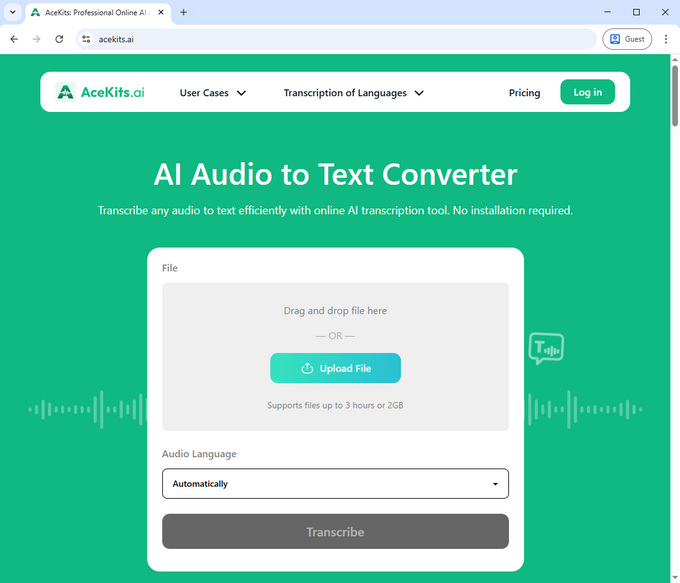
AceKits AI is a powerful YouTube video transcription tool built on the Whisper API, known for its strong speech recognition accuracy. It supports large audio files up to 2GB and can automatically detect the language of the audio, making it suitable for multilingual YouTube content.
How to get the transcript of a YouTube video with AceKits AI?
- Extract the audio from the YouTube video using a URL to MP3 tool.
- Upload the audio file to AceKits AI for processing.
- Within minutes, the system converts the speech into a high-quality transcript that you can review or download.
When to use it:
Users working with long-form videos, podcasts, or multilingual content who need accurate AI transcription.
NoteGPT – AI Transcript + Content Generation Tool
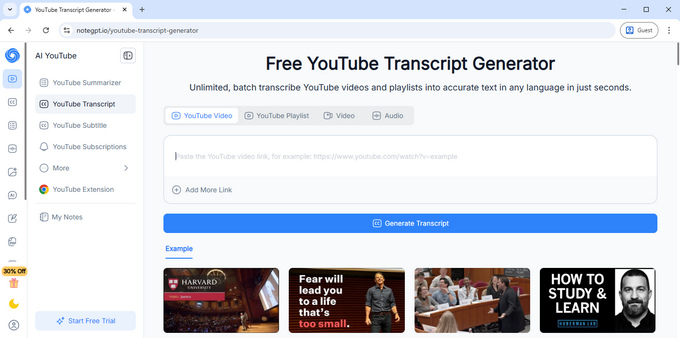
NoteGPT is a multi-functional AI tool that goes beyond transcription by combining transcript generation with content analysis features such as summaries, mind maps, and AI chat.
It supports converting a YouTube link to transcript, whether it’s a single video or a playlist URL. It also handles large file uploads up to 5GB, making it one of the most feature-rich platforms available. In addition to transcripts, it can generate structured outputs such as presentations, quizzes, and infographics.
How to extract transcript from YouTube video with NoteGPT?
- Paste a YouTube video URL into NoteGPT YouTube Transcript Generator.
- Wait a few seconds for transcript generation.
- Preview transcript (login required for download and advanced features).
When to use it:
Best for users who want more than just transcription, such as content creators, students, or researchers who need summaries, visualizations, or AI-assisted content generation.
TurboScribe – Transcription with Rich Export Options
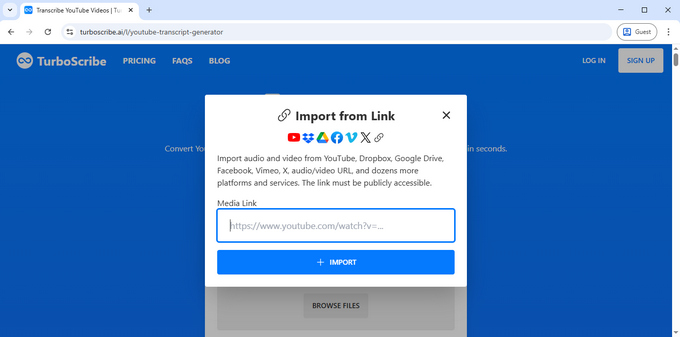
TurboScribe is a transcription tool that supports direct YouTube link conversion and offers a wide range of export formats, including PDF, DOCX, TXT, SRT, VTT, and CSV.
It also includes additional features such as translation into 100+ languages, transcript editing, and AI-powered summarization.
How to get transcript of YouTube video that doesn't have transcript?
- Go to the TurboScribe YouTube Transcript Generator. Click the URL icon in the upper-right corner and paste your YouTube video link.
- Wait for the system to transcribe YouTube video to text (may take longer for long videos).
- Export transcript in your preferred format.
When to use it:
Suitable for users who need flexible export formats, translation, and additional editing features, and who do not mind slightly longer processing times.
youtube-transcript.io – Fast Transcript with Interactive Notes
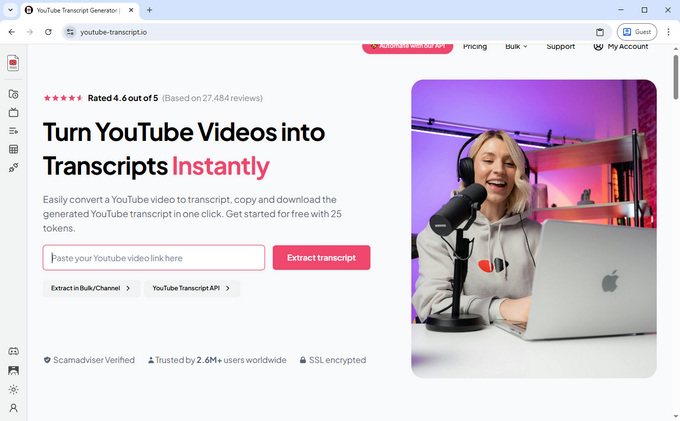
youtube-transcript.io is designed for fast transcript generation directly from YouTube links, even when subtitles are not available.
It stands out for its speed (processing a 40-minute video in a few seconds) and interactive transcript features, such as clicking on text to jump to specific video timestamps or adding notes.
How to download YouTube transcript?
- Paste a YouTube link to this free YouTube Transcript Generator.
- The tool will generate transcript in seconds.
- Copy transcript or interact with timestamps.
When to use it:
Best for quick access, note-taking, and interactive video review rather than full transcript export workflows.
Tactiq – Quick Transcript Tool for Videos with Subtitles
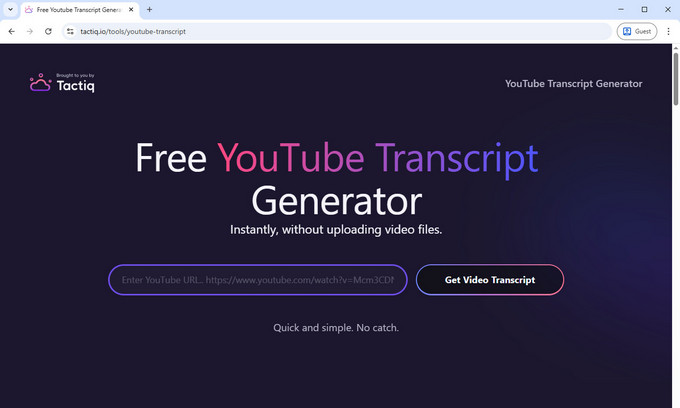
Tactiq is a lightweight tool (and Chrome extension) designed to extract transcripts quickly from videos that already have subtitles.
It provides simple options such as copying the full transcript with timestamps or downloading it as a TXT file (without timestamps).
How to get transcript from YouTube video?
- Go to Tactiq, and paste a YouTube video link with subtitles.
- This YouTube video transcript generator will convert YouTube to text within seconds.
- Copy or download transcript (TXT format).
When to use it:
Ideal for quick transcript access when subtitles already exist, but not suitable for videos without captions or for more advanced workflows.
Part 3. Comparison of YouTube Transcript Tools
| Tool | Works Without Subtitles | Ease of Use | Export Formats | Max Length | Languages | Login Required | Speed | Best For |
|---|---|---|---|---|---|---|---|---|
| Hicoo AI | ✅ Yes | ⭐⭐⭐⭐⭐ | TXT, SRT, VTT, DOCX | Up to 3h / 2GB | 100+ | ❌ No | ⚡ Very Fast | All-in-one transcription, long videos |
| AceKits AI | ✅ Yes | ⭐⭐⭐⭐ | TXT, SRT, VTT, DOCX | Up to 3h / 2GB | 100+ | ❌ No | ⚡ Fast | High-accuracy, large files, multilingual audio |
| NoteGPT | ✅ Yes | ⭐⭐⭐⭐ | Limited (login required) | Up to 5GB | Multi-language | ⚠️ Yes | ⚡ Very Fast | AI content + transcript |
| TurboScribe | ✅ Yes | ⭐⭐⭐⭐ | PDF, DOCX, TXT, SRT, VTT, CSV | Long videos | 100+ | ⚠️ Yes | ⏳ Medium | Export flexibility |
| YouTube-Transcript.io | ✅ Yes | ⭐⭐⭐⭐ | Copy only | Medium | Multi-language | ⚠️ Yes | ⚡ Very Fast | Quick notes |
| Tactiq | ❌ No | ⭐⭐⭐⭐ | TXT / Copy | Short–medium | Limited | ⚠️ Yes | ⚡ Fast | Subtitle-based use |
| YouTube Built-in | ❌ No | ⭐⭐⭐ | No export | Any | Limited | ❌ No | ⚡ Instant | Quick reference |
Conclusion
How to get transcript of a YouTube video? It depends on whether a transcript is available.
If a YouTube transcript exists, the built-in feature works for quick viewing, but it’s limited and doesn’t support downloads. If not, the best way to get a transcript of a YouTube video is to use AI tools that convert video audio into text.
Among the available options, tools like Hicoo AI YouTube video transcript generator offer a more complete solution with fast processing, no login, and flexible export formats, making them the easiest choice for most users.
FAQ
1. Can I get a YouTube transcript for free?
Yes. If the video has captions, you can use YouTube’s built-in transcript for free. If not, you can still do it without paying by using tools like Hicoo or NoteGPT — both allow you to generate transcripts without subtitles, though some features may require login or have limits.
2. How to view transcript on YouTube?
Open a video on desktop, scroll to the description area, and click “...more” to expand it. If available, select “Show transcript” to view the text with timestamps.
3. How to get a transcript of a YouTube video without subtitles?
If there are no subtitles, you need to convert YouTube video to text via a helpful YouTube transcript generator.
- Paste the video link into a tool like Hicoo URL MP3 converter to extract audio.
- Upload the audio to the YouTube transcript generator.
- Download the transcript (TXT, SRT, etc.)
This works for almost any video, including podcasts and interviews.
4. How to get a transcript of a YouTube video on phone (iPhone & Android)?
On mobile devices, copying transcripts directly from YouTube is limited and often inconvenient. A more practical approach is to use browser-based tools. You can open a tool like NoteGPT or YouTube-Transcript.io in your mobile browser, paste the YouTube video link, and generate the transcript within seconds. Once it’s ready, you can copy or download the text directly, which avoids the limitations of the YouTube app.
5. How to use AI to get a transcript of a YouTube video?
First, paste the YouTube video link into NoteGPT, which can convert a YouTube link to a transcript directly. Then the system will process the content automatically and convert the speech into text that you can copy or download.
6. How to download a YouTube transcript?
YouTube does not offer a direct download option. To download a transcript as a file (such as TXT or SRT), you need to generate it using a transcription tool like Hicoo or Turboscribe that supports export formats.