
Video conversion sounds simple until you actually need to do it. One tool is fast but heavily compressed. Another preserves quality but takes longer. Some require you to upload files before conversion starts, while others process everything locally.
Whether you're converting videos for YouTube, changing formats for compatibility, reducing file size, or looking for a tool that doesn't require uploads, the right converter can save a lot of time and frustration.
We tested several popular video converters using the same sample file to compare speed, output quality, features, and overall experience. This guide focuses on what actually matters in everyday use, not just feature lists.
Table of Contents
YouTube Video Converter Online
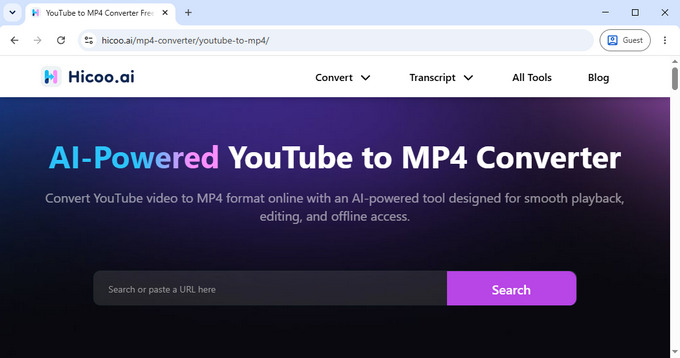
When working with YouTube videos, stability and output options matter more than anything else.
Hicoo YouTube video converter supports MP4 output in 480p, 720p, and 1080p resolutions, covering most everyday viewing and content reuse needs. In testing, the process remained consistent across different resolutions, without failed attempts or delays between steps.
What makes the difference here is not just speed, but reliability. Many similar tools struggle with broken links or inconsistent processing, while this one handled repeated tests without interruption.
It’s best suited for situations where you need a predictable result without adjusting settings or retrying multiple times.
Best Online Video Converters Compared
Online video converters seem similar at first glance, but the differences show up quickly once you test them under the same conditions.
Testing Notes
To keep the comparison consistent, all video converters were tested using the same 5.26MB MP4 file and converted to MOV format. In addition to conversion time, we also evaluated output file size, bitrate retention, available settings, and overall user experience.
Below are the tools tested under the same conditions.
Hicoo Online Video Converter – Local Processing
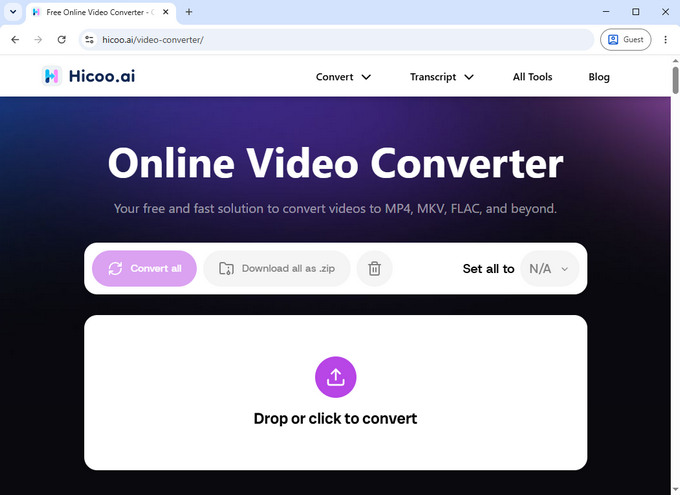
Unlike most online tools, Hicoo Online Video Converter processes files locally in the browser instead of uploading them to a remote server.
That changes the experience significantly. With a 5.26MB test file, the total time felt shorter than tools with faster raw conversion speeds, since there was no upload delay before processing started.
This comes from local processing, where files do not need to be stored on external servers before conversion begins. For users working with personal recordings, internal presentations, client materials, or other sensitive files, this can be a meaningful advantage over traditional cloud-based converters.
There are no ads in the interface, and the workflow stays clean from start to finish. It supports multiple output formats and allows small batch conversions.
This makes it a strong option when you want the simplicity of an online video format converter, but without the usual drawbacks like waiting for uploads, dealing with cluttered pages, or sharing files with third-party servers.
FreeConvert – Fast Conversion
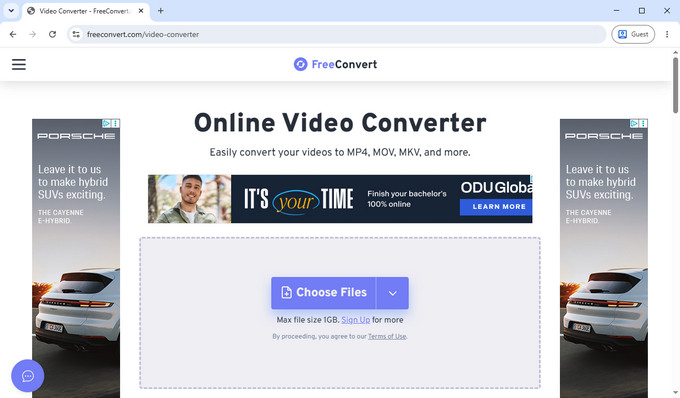
FreeConvert was the fastest tool in testing. A 5.26MB file was converted in approximately 7 seconds and reduced to 6.4MB, making it the quickest result among all tested tools.
The smaller output size came from more aggressive compression, with the video bitrate dropping to around 80kbps. This helps reduce file size but can affect visual quality.
FreeConvert video converter also offers one of the widest ranges of settings, including codec selection, resizing, frame rate control, trimming, cropping, subtitle settings, and device-based presets for platforms like iPhone and Android.
The main downside is the interface, which is filled with ads around the workspace.
Best suited for quick conversions where speed matters more than perfect quality.
Convertio – Higher Quality Output
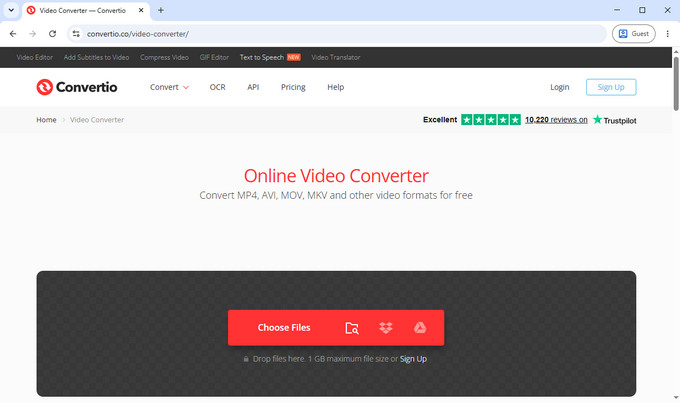
Convertio preserved the most detail in our MP4-to-MOV test. The same 5.26MB file took around 19 seconds to convert and resulted in an 8.29MB output file with a higher bitrate of approximately 145kbps.
The larger file size reflects less compression and better preservation of image quality.
The interface is cleaner compared to most free video converters, and it allows detailed control over both video and audio settings, including bitrate, codec selection, frame rate, audio channels, and volume.
Files are stored for up to 24 hours, which can be useful if you need to access them again.
This free video converter is best suited for situations where output quality is more important than speed.
CloudConvert – Batch Conversion
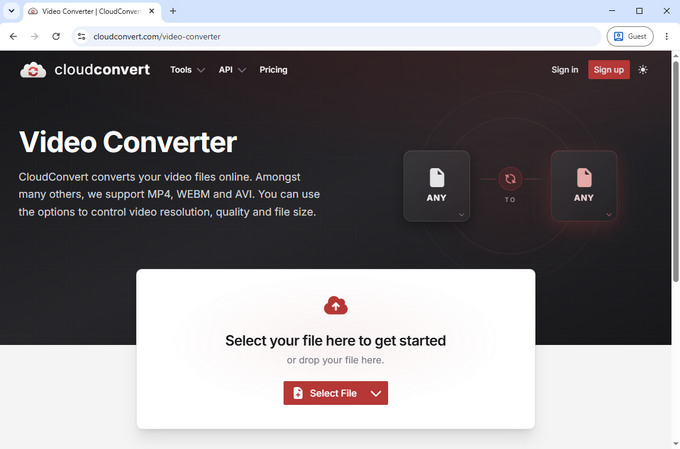
CloudConvert offers a balance between speed, quality, and flexibility. In testing, the same file converted in around 12 seconds and produced a 6.96MB output file with a bitrate of approximately 100kbps.
It supports batch conversion and allows multiple files to be processed together, with the option to download results individually or as a ZIP archive.
Advanced settings include video codec selection, resolution, aspect ratio, frame rate, audio settings, subtitles, trimming, and even watermark options. Despite the number of controls available, the interface remains relatively easy to navigate.
This online video converter is best suited for multi-file workflows or when you need moderate control without switching to desktop software.
Desktop Video Converters for Frequent Use
Hicoo Premium Converter – Frequent Workflows
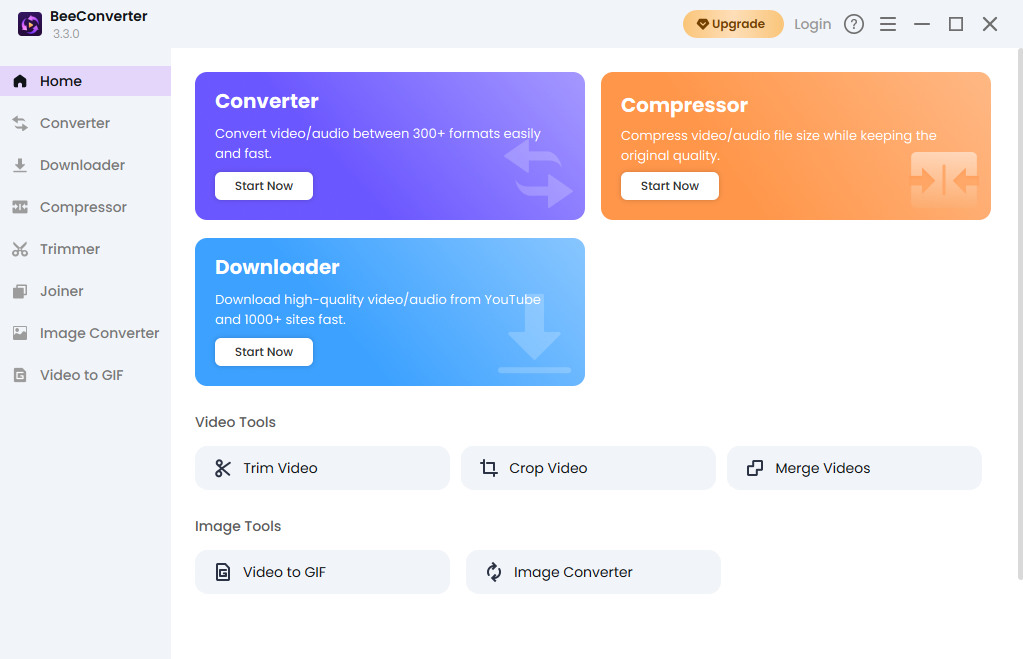
Hicoo Premium Converter focuses on audio and video conversion but extends into related tasks such as compression, trimming, merging files, image conversion, and video-to-GIF creation.
Unlike many converters that only change formats, it combines several commonly used media tools in a single workspace. This reduces the need to switch between different applications when preparing content.
The software supports batch conversion, multiple output formats, adjustable resolution settings, and output presets optimized for devices or web platforms. Advanced audio and video settings are also available when more control is needed.
Because everything runs locally, performance remains consistent regardless of file size, and there is no dependency on upload speed or server availability.
Best suited for users who regularly work with video files and need a stable, repeatable workflow.
Wondershare UniConverter – Editing & Conversion
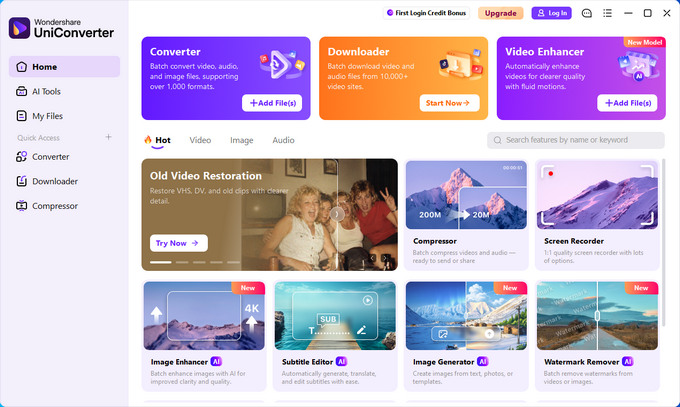
UniConverter is more than a video format converter. It is designed as a complete media toolkit.
Installation requires approximately 1.7GB of storage space and includes additional components such as UniConverter Player. Startup is noticeably slower than lightweight conversion tools, and the free version limits how much of a file can be processed.
In return, it offers a broad collection of features, including video editing, video enhancement, subtitle management, metadata editing, image enhancement, background removal, vocal removal, transcription tools, and other AI-powered utilities.
For simple format conversion, it may feel unnecessarily heavy. However, for users already editing videos or managing media assets regularly, it can replace several standalone tools.
Best suited for users who need both conversion and editing capabilities in a single workflow.
How to Choose the Right Video Converter
The right tool depends on what you need to do, not just which one has more features.
If you only need to convert a file occasionally, an online video file converter is usually enough. For quick tasks, speed and simplicity matter more than advanced settings.
If you convert files regularly, local tools become more practical. They remove upload delays and keep files on your device.
If quality matters, pay attention to bitrate and output size. Faster tools often reduce file size more aggressively, which can affect visual clarity.
If you’re handling multiple files, batch processing becomes important. Some tools handle this efficiently, while others are better for single-file tasks.
Hicoo Online Video Converter works well as a starting point because it avoids upload delays while keeping the interface simple. For more frequent use, the desktop version provides more control and consistency.
How to Choose the Right Output Format
Most conversion issues are actually format issues. Choosing the right format often solves the problem immediately.
If a video won’t play on your device, converting it to MP4 is usually the safest solution. MP4 is supported across almost all devices and platforms, so compatibility problems rarely happen.
If your file is too large to upload or send, formats with stronger compression or lower bitrate settings will reduce size. In this case, even staying in MP4 but lowering resolution (for example from 1080p to 720p) can make a big difference.
If you only need audio, converting to MP3 is the simplest option. It removes unnecessary video data and keeps file size small.
If you’re preparing content for a specific platform, using presets or recommended formats avoids trial and error. Many video converter software includes presets for popular devices and platforms, which can save time and help avoid compatibility issues.
Which Video Converter Should You Choose?
For quick, one-time conversions, most online video converters will work.
If you want a cleaner experience without ads, no upload delays, and the added benefit of local processing, Hicoo Online Video Converter is a strong option.
If you work with videos more regularly and need tools beyond format conversion, Hicoo Premium Converter provides a more complete workflow.
If output quality is your top priority, Convertio delivered the best results in testing. If speed matters most, FreeConvert was the fastest option.
Frequently Asked Questions
1. What is the easiest way to convert a video?
For small or one-time tasks, online tools such as Hicoo Online Video Converter, CloudConvert, or FreeConvert are the easiest because they run in the browser with no installation. For frequent or large files, desktop tools like Hicoo Premium Converter or other local converters are more practical.
2. Does converting a video reduce quality?
It depends on compression settings. If the goal is to preserve higher quality, tools like Hicoo, Convertio or CloudConvert can be used with higher-quality settings to retain more detail. If the priority is reducing file size, stronger compression will usually make the file smaller but may reduce visual clarity.
3. What format should I use?
MP4 is the safest choice for most situations because it works across almost all devices, browsers, and platforms. It is widely supported and avoids compatibility issues in most everyday use cases.
4. Can I convert large files online?
Yes, with tools like CloudConvert or Convertio, but upload time becomes a limitation. For large files, desktop tools like Hicoo Premium Converter are usually more efficient.