Sometimes you only need the audio from a video, whether it's a song, a useful interview, a lecture, or a podcast clip. Converting the video to MP3 gives you an audio file that's easier to listen to on the go, organize in your personal media library, or use in your own projects. You can extract audio from an online video using a URL to MP3 converter, or convert video files saved on your device with a video to MP3 converter.
Table of Contents
How to Convert Online Videos to MP3
For YouTube videos, Shorts, and playlists, a YouTube-specific converter offers dedicated support. For links from other supported websites, a URL to MP3 converter is a more flexible option.
How to Convert YouTube Videos to MP3
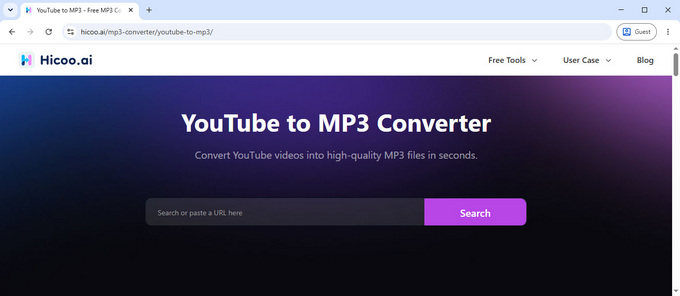
Hicoo YouTube to MP3 Converter supports different types of YouTube links, including regular videos, YouTube Shorts, and playlists. You can paste a link directly or search by song title or artist, making it useful whether you already have a URL or are looking for a particular track.
How to convert YouTube videos to MP3:
- Open the YouTube to MP3 converter and paste a YouTube URL, or search for a song or artist.
- Check the parsed result and preview the audio if you want to confirm the track.
- Select an MP3 bitrate, start the conversion, and save the audio file.
For playlists, check the parsed track list before converting to make sure it contains the songs you want.
How to Convert Video URLs from Other Websites to MP3
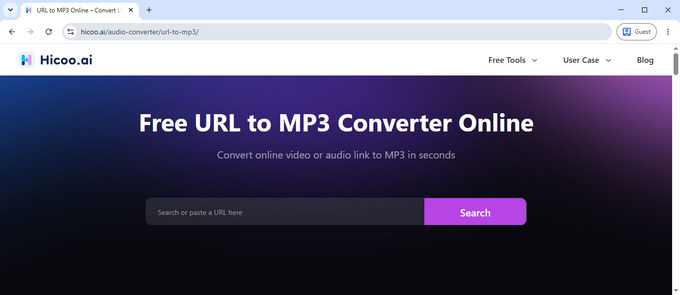
For videos hosted outside YouTube, use the Hicoo URL to MP3 Converter. It supports links from more than 200 websites, including TikTok, Instagram, Facebook, X, SoundCloud, and Mixcloud. Supported link types vary by platform, so not every post, profile, or page URL will necessarily work. You can use the tool in your browser without creating an account.
How to convert a video URL to MP3:
- Open the Hicoo URL to MP3 Converter and paste the supported URL.
- Wait for the tool to parse the link, then check the detected content.
- Choose MP3 and your preferred bitrate if prompted, then start the conversion.
If parsing fails, first open the original link in your browser to confirm that it works. Then copy the direct link to the individual video or track and try again. URL support varies by platform and content type, and private or restricted content may not be accessible.
How to Convert a Local Video File to MP3
To extract audio from a video saved on your device, use a video to MP3 converter that supports the file format and size. Hicoo is suited to quick browser-based conversions, while CloudConvert offers additional controls for adjusting the audio before exporting.
Use Hicoo for Fast, Private Conversion
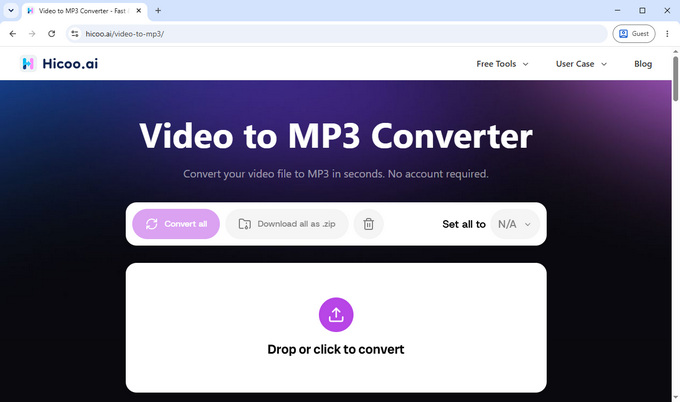
Hicoo Video to MP3 Converter processes local files directly in your browser, so your video does not need to be uploaded to a conversion server. It supports MP4, MOV, AVI, and MKV files up to 100 MB, with up to three files per batch. There's no software to install, and the video file to MP3 tool has no ads or pop-ups interrupting the conversion process.
In our test, Hicoo converted a 54.5 MB MP4 video, 5 minutes and 21 seconds long, into a 4.90 MB MP3 in about seven seconds. This gives you a practical example of the time and output size for one file, although results will vary with the source video and device.
How to convert a local video with Hicoo:
- Open the video to MP3 converter online and select a video file from your device.
- Choose MP3 as the output format if prompted, then start the conversion.
- Save the converted MP3 when processing finishes.
For files over 100 MB or conversions that need more detailed audio controls, consider a desktop converter or an online service with suitable settings.
Use CloudConvert to Adjust Audio Settings
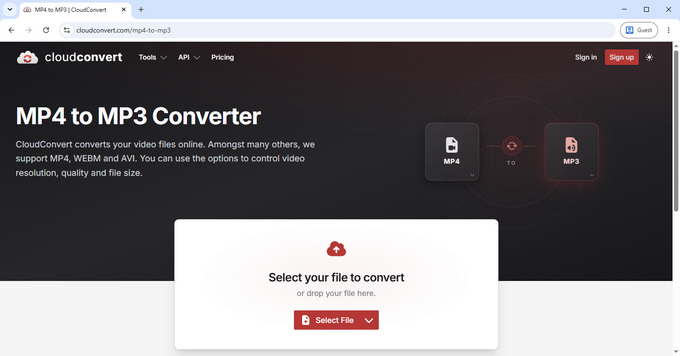
CloudConvert's MP4 to MP3 converter is useful when you need to edit the audio before exporting. It provides controls for bitrate, audio channels, sample rate, volume, and trimming, and supports up to five files in a batch.
The trimming option is particularly useful when you only need a short section of a video, such as a song chorus or a sound clip for a ringtone. Set the start and end points to keep the part you want instead of converting the entire video's audio.
In our test with the same 54.5 MB video, CloudConvert took about 29 seconds and produced an 8.3 MB MP3. The output file was larger than the one produced by Hicoo in our test. Output size can vary with bitrate and other encoding settings, so file size alone is not a reliable measure of audio quality.
How to convert a video to MP3 with CloudConvert:
- Open the MP4 to MP3 converter and upload your video.
- Adjust the audio settings or trim the section you need.
- Start the conversion and save the resulting MP3.
CloudConvert's additional controls make it a useful choice when a basic audio extraction isn't enough and you want to fine-tune the output.
Convert Large Videos Locally
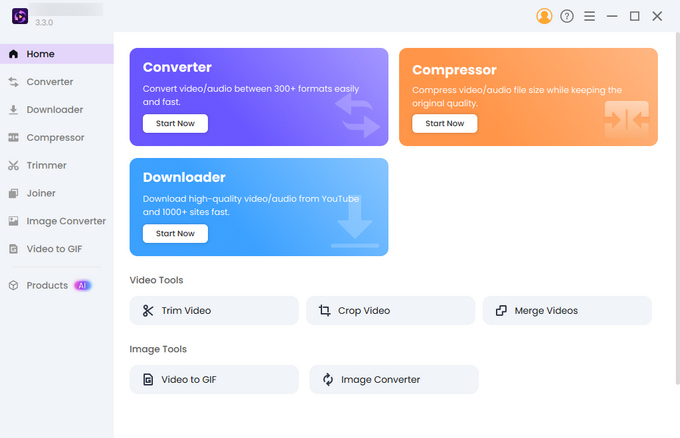
For long videos, files over 100 MB, or frequent conversions, Pro Video Converter for Windows and Mac offers a practical alternative to browser-based tools with smaller file limits. It processes files directly on your computer, so you don't need to upload large videos to a conversion server or wait for them to finish uploading.
It supports more than 200 formats and batch conversion of up to 30 files, with a maximum file size of 3 GB per video. CPU acceleration helps speed up local conversions, particularly when processing large videos or batches. Actual performance still depends on your computer, video length, and output settings.
How to convert large videos to MP3:
- Install and open Pro Video Converter on your Windows or Mac computer.
- Add your video files and select MP3 as the output format.
- Adjust the audio settings if needed, then start the conversion.
When converting a large batch, process one representative file first and check its audio and duration before converting the rest.
Common Video to MP3 Conversion Problems
The video URL cannot be processed
First, open the original link in your browser to confirm that it still works. Then copy the direct URL of the individual video or track rather than a profile, search page, or shortened link that redirects elsewhere. Use the YouTube converter for YouTube links and the URL to MP3 converter for supported links from other platforms. Private, restricted, or unsupported content may not be accessible.
The video file exceeds the size limit
Hicoo's online video to MP3 converter supports files up to 100 MB. For a larger local file, Pro Video Converter for Windows and Mac supports files up to 3 GB. If you prefer an online service, check its current file-size and usage limits before starting rather than repeatedly retrying a file that exceeds the limit.
The MP3 sounds different from the original
Choose 128 kbps when a smaller file matters more, or 320 kbps when you prefer a higher-bitrate MP3. A higher bitrate cannot restore details missing from the source audio, so a noisy or muffled video will still sound noisy or muffled after conversion.
The MP3 is much smaller than the video
This is normal because MP3 contains audio only, not the video's visual data. Check the audio duration to make sure the whole track was converted. If the MP3 is unexpectedly short, retry the conversion and confirm that you selected the correct video or playlist item.
Conversion is taking too long
For browser-based local conversion, close unnecessary tabs and applications if your computer is low on memory. Try processing one file at a time to see whether a large batch is slowing things down. If you regularly convert large files or multiple videos, Pro Video Converter avoids upload time and supports batches of up to 30 local files.
Frequently Asked Questions
1. Which tool should I use to convert a video to MP3?
Use Hicoo URL to MP3 Converter for links from most supported websites, or Hicoo Video to MP3 Converter for video files saved on your device.
2. Can I convert a YouTube playlist to MP3?
Yes. Paste the playlist URL into Hicoo YouTube to MP3 Converter. Once the playlist is parsed, check the track list and preview individual songs before proceeding with the available conversion options.
3. Can I convert multiple videos to MP3 at once?
Yes. Hicoo's online video MP3 converter supports up to three local files per batch. Pro Video Converter for Windows and Mac supports up to 30 files, with a maximum file size of 3 GB per file.
4. Which MP3 bitrate should I choose?
Choose 128 kbps when smaller file sizes matter, such as for speech or casual listening. Choose 320 kbps if you prefer a higher-bitrate MP3 for music. Higher bitrates usually create larger files and cannot improve audio quality beyond what the original source contains.
5. Is it legal to convert videos to MP3?
Convert videos you own or have permission to use, and check applicable copyright rules and platform terms. A publicly accessible video is not automatically free to convert, download, or reuse.