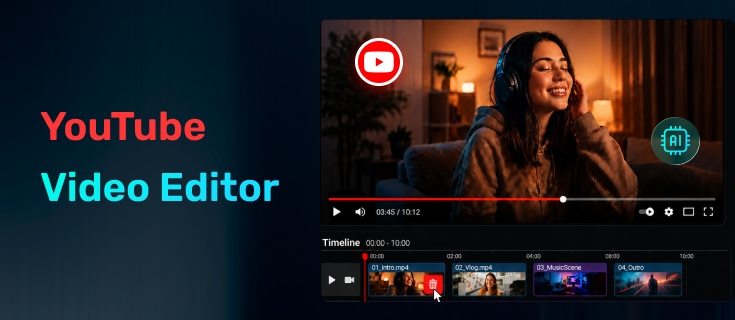
Choosing a YouTube video editor is not about picking the one with the most features. For beginners, the best editor is usually the one that helps you create videos faster without spending too much time learning complicated workflows.
A good YouTube editor should make common tasks simple, such as cutting clips, adding subtitles, improving audio, creating Shorts, and exporting videos with the right settings.
I tested several popular and widely used YouTube video editors to see how they perform in real creator workflows, including ease of use, editing experience, AI features, subtitle tools, export quality, and free plan limitations.
In this guide, you'll find beginner-friendly editors for different needs, from simple YouTube videos and Shorts to AI-assisted editing and channel branding.
If you don't have footage yet, you can also start with the a free AI video generator before editing your video.
Table of Contents
Compare the Best YouTube Video Editors
There are many YouTube video editors available, but they are not designed for the same type of creator. Some are designed for quick edits and Shorts, while others focus on AI-assisted workflows, branding, or longer YouTube videos.
The table below gives you a quick overview of the editors I tested and what each tool does best.
| Editor | Best For | Export Quality | Watermark | Why Choose It |
|---|---|---|---|---|
| CapCut Online | Beginners & Shorts | Up to 1080p | No (standard exports) | Easy editing with useful creator features |
| VEED | AI-assisted editing | 720p | Yes | AI tools for subtitles, voice, and faster workflows |
| Flixier | Flexible editing workflow | 720p | Yes | Traditional editing with AI assistance |
| Renderforest | Intros & branding | 720p | Yes | Templates for polished channel assets |
| EchoWave | YouTube Shorts & visual effects | 720p | Yes | Fast visual enhancements and presets |
| Publer | Quick edits | Varies | No | Simple trimming and resizing |
| Hicoo Premium Converter | Video preparation & basic editing | Original quality | No | Convert, trim, merge, and compress videos |
YouTube Video Editors We Tested
I tested these YouTube video makers based on a beginner's workflow: how easy they are to start with, how quickly you can complete common editing tasks, what features actually help YouTube creators, and what limitations you should know before choosing a tool.
These YouTube editors are built for different workflows. Some focus on traditional video editing, while others help creators with AI-assisted workflows, branding, or faster content production. Each tool has a different strength, so the best choice depends on the type of videos you want to create.
CapCut Online - Best Overall Choice for Beginners
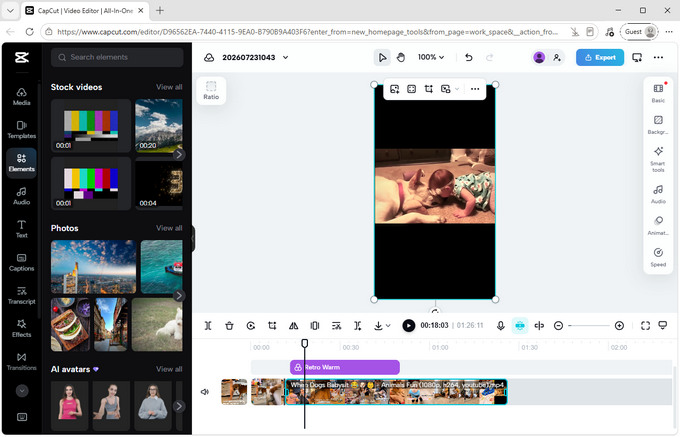
CapCut is one of the easiest YouTube video editors for beginners, while still offering enough features as your editing needs grow.
When I tested CapCut Online, I found that its workflow matches many common YouTube tasks. After importing a video, you can edit the timeline, add effects, generate captions, create a cover image, and export the final video without switching between different tools.
One feature that stands out for YouTube creators is the built-in Cover editor. Instead of taking a random screenshot after finishing a video, you can select a frame from your footage and customize it as a cover image. This saves an extra step for creators who publish regularly.
CapCut also provides a practical subtitle workflow. You can generate captions automatically, edit them manually, upload subtitle files, or create a transcript from the video's speech. The transcript feature allows you to edit parts of the video through text instead of searching through the timeline.
For beginners creating YouTube Shorts or social content, CapCut offers many ready-made templates, formats, transitions, and filters. During testing, I found that most standard assets were available without upgrading, making it easier to create polished videos without additional costs.
The export workflow is another advantage. You can adjust the resolution, quality, frame rate, and format before exporting, or share directly to platforms like YouTube and Facebook. In my testing, rendering was faster than several other browser-based editors, and standard 1080p exports were available without a watermark.
The main limitation is that premium assets are mixed with free resources. If you use Pro templates, effects, or text elements, CapCut will ask you to upgrade or remove them before exporting. Beginners should check asset labels when adding elements to a project.
Best for: Beginners creating YouTube videos, Shorts, tutorials, and creators who want a free editor that can grow with their workflow.
VEED - Best for AI-Assisted YouTube Editing
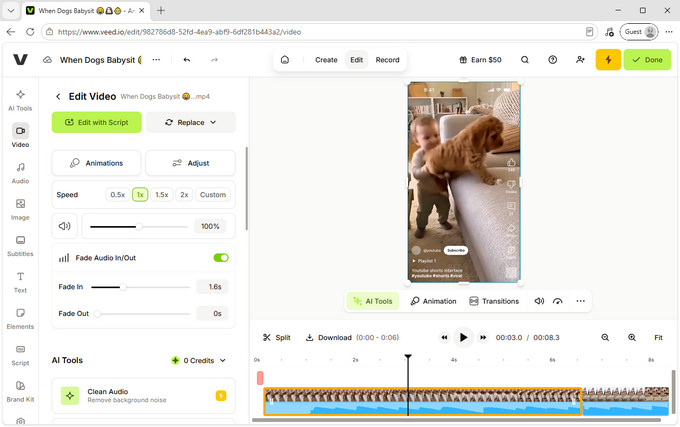
VEED is a good choice for beginners who want to edit YouTube videos faster with the help of AI tools, especially for content that depends heavily on speech, subtitles, and voice.
Compared with traditional YouTube video makers, VEED focuses less on complicated timeline editing and more on helping creators finish content quickly. During testing, I found that many of its strongest features are built around talking-head videos, tutorials, interviews, and other formats where captions and audio quality matter.
One of VEED's most useful features is its subtitle workflow. You can automatically generate subtitles, edit them manually, upload subtitle files, or translate captions into different languages. If your video includes multiple speakers, VEED also allows you to apply different subtitle styles to different speakers, which makes interviews and discussion videos easier for viewers to follow.
Another feature that stood out during testing was its transcript-based editing. After generating a transcript, you can remove parts of the text to cut the corresponding sections from the video. For beginners who are not comfortable working precisely on a timeline, editing through text can feel much more intuitive.
VEED also includes many AI tools designed to simplify common YouTube editing tasks. These include audio cleanup, filler word removal, AI voiceovers, background tools, and other AI-powered editing features. Some AI features are more useful for specific workflows, but they can save time for creators who frequently edit talking-head videos or tutorials.
For creators who publish across multiple platforms, VEED also makes resizing easier. You can quickly create different versions of the same video using preset formats for YouTube Shorts, TikTok, Instagram Reels, Facebook, LinkedIn, and other platforms. This is especially useful if you want to turn one long-form YouTube video into several shorter clips.
The main limitation I noticed is the free export restriction. Free users can export videos at up to 720p with a watermark, and the watermark remains visible throughout the video. Some stock materials, effects, and advanced AI features also require a paid plan.
For beginners, VEED is especially useful when the goal is to create content faster rather than manually handle every editing step. If your content involves speaking, tutorials, or educational videos, it can significantly simplify the editing process.
Best for: Beginners creating tutorials, educational videos, interviews, podcasts, and AI-assisted YouTube content.
Flixier - Traditional Editing Workflow with AI Assistance
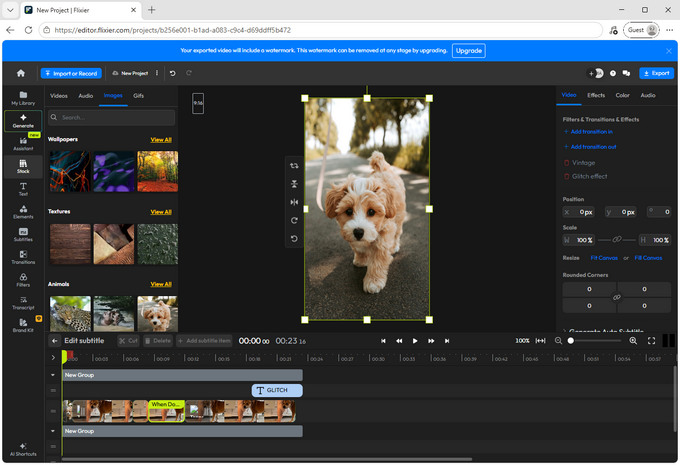
Flixier is a good fit for creators who want a more traditional editing experience while still benefiting from AI-powered tools. It combines familiar timeline editing features with AI assistance that helps simplify repetitive tasks.
During testing, I found the transcript editing workflow to be one of its most practical features. After generating a transcript, you can edit the text and remove the corresponding parts of the video. While this feature is not unique to Flixier, having it integrated into a more traditional editing environment makes it useful for longer YouTube videos such as tutorials, interviews, and presentations.
Flixier YouTube video editor also includes an AI assistant called Eva, which allows you to describe the changes you want and let the tool help modify the video. In practice, I found it more useful for larger editing requests rather than quick adjustments. For simple cuts, manually editing the timeline was often faster because the AI response was not always immediate.
The main limitation is the free plan. Exports are limited to 720p and include a watermark. During editing, the preview quality is compressed, so the final exported video may look different from what you see in the editor.
Best for: Beginners who want to learn a more structured editing workflow, especially for tutorials, interviews, and longer YouTube videos.
Renderforest - Best for YouTube Intros and Branding
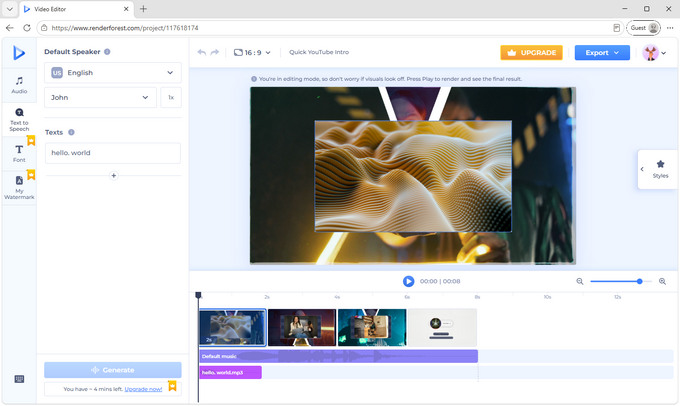
Renderforest is different from the other YouTube editors in this list because it focuses more on branded content than full video editing. It is especially useful for creating YouTube intros, outros, channel trailers, and promotional videos.
During testing, the template-based workflow was the biggest advantage. Instead of building animations from scratch, you can choose a ready-made design, upload your own assets, and quickly create a polished result. For beginners who are not familiar with motion graphics, this makes creating consistent channel elements much easier.
It also includes a text-to-speech feature. After entering a script and selecting a voice, you can generate narration without recording your own audio. The voice quality was suitable for simple promotional videos or explainers.
The limitation is that Renderforest is not designed for detailed video editing. If you need precise timeline editing or complex adjustments, you will need another editor. The free plan exports videos at 720p with a watermark, so it is mainly suitable for testing templates before upgrading.
Best for: Beginners who need YouTube intros, outros, and branded content.
EchoWave - Best for YouTube Shorts and Visual Enhancements
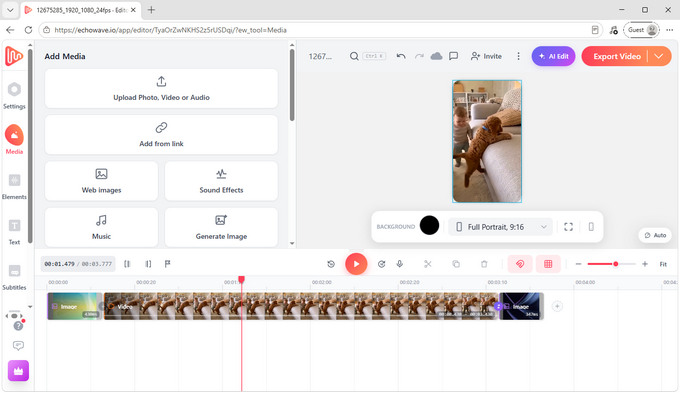
EchoWave works best for creators who want to make videos more engaging with captions, graphics, and platform-specific layouts.
The feature I found most useful was its preset format system. You can quickly create versions for YouTube (16:9), YouTube Shorts (9:16), TikTok, Instagram Reels, and other platforms without manually adjusting the canvas.
It also includes many ready-to-use visual elements, including music, sound effects, images, emojis, audio visualizers, charts, shapes, and text effects. These tools are helpful for beginners who want to improve simple videos without spending time designing every element themselves.
EchoWave YouTube video maker also provides subtitle generation and AI voice features. The AI voices are usable for basic narration, although generation was slower than some alternatives and the voices still sounded slightly artificial in longer sections.
The main limitation is the free plan, which only allows 720p exports with a watermark. The export process also includes several additional steps before the final file is available.
Best for: Beginners creating Shorts, social content, and videos that need captions or visual effects.
Publer - Best for Quick YouTube Video Edits
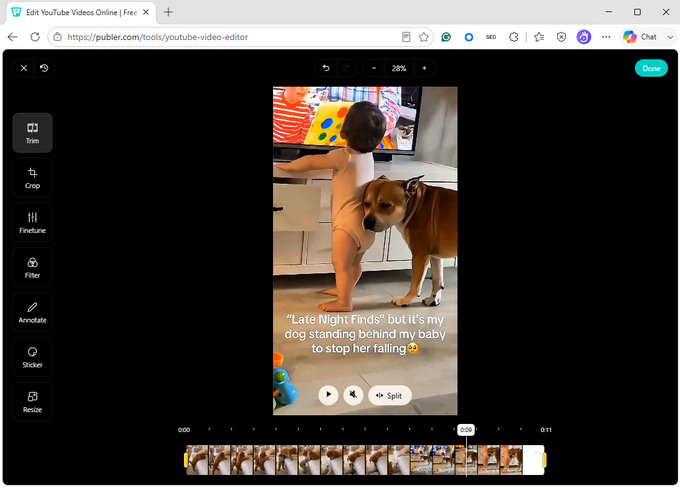
Publer is a lightweight YouTube video editor designed for creators who need simple adjustments rather than a complete editing workflow.
During testing, I found its biggest advantage was speed and simplicity. After uploading a video, Publer automatically displays different scenes as thumbnails on the timeline, making it easier to locate sections that need trimming or splitting.
The editor includes basic tools such as trim, split, merge, crop, and resize, along with simple adjustments for brightness and other visual settings.
For beginners who only need to cut unnecessary parts, resize a video, or make small adjustments before uploading to YouTube, Publer provides a straightforward workflow without unnecessary complexity.
The main limitation is that it is not designed for larger editing projects. During testing, a 50MB video already felt slower to process, and some exports failed occasionally. For better performance, it is better suited for shorter or smaller video files.
Best for: Beginners who need quick trimming, resizing, and simple edits before publishing videos.
Hicoo Premium Converter - Best for Preparing Videos Before Editing
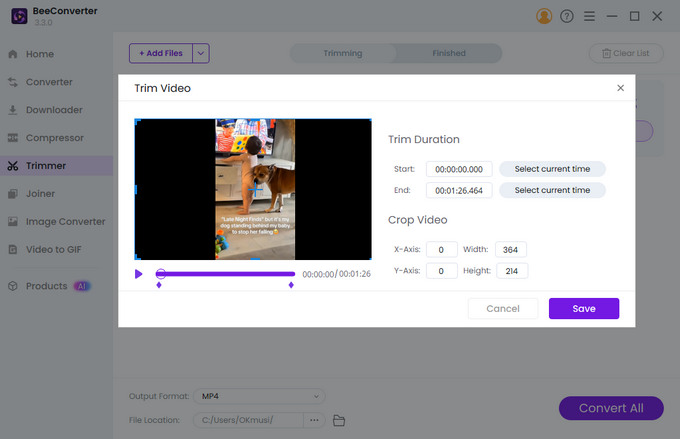
Hicoo Premium Converter takes a different approach from browser-based YouTube video editors. Instead of focusing on creative effects and templates, it focuses on video processing tasks such as converting, trimming, merging, and compressing videos.
Instead of editing directly in the browser, Hicoo runs as a desktop application, which avoids some of the upload and processing limitations that online tools may have. During testing, the desktop workflow felt more stable for these tasks compared with browser-based tools.
It also includes preset export options for common YouTube formats, including HD 1080p, 720p, and lower resolutions. This can be helpful when your source video format is not ideal for your editing software or when you need to reduce file size before uploading.
For creators who regularly work with different video formats, Hicoo can be used alongside a YouTube editor rather than replacing one. For example, you can convert or compress footage first, then import the prepared file into your preferred editing tool.
Best for: Creators who need a desktop tool for video conversion, compression, trimming, and file preparation before editing.
Recommended Export Settings for YouTube Videos
Choosing the right export settings helps keep your video quality consistent after uploading to YouTube.
For most beginners, these settings work well:
| Setting | Recommended |
|---|---|
| Format | MP4 (H.264) |
| Resolution | 1080p for most videos |
| Aspect Ratio | 16:9 for regular videos, 9:16 for YouTube Shorts |
| Frame Rate | Same as original footage |
| Audio | AAC |
Most YouTube editors support MP4 export directly. However, if your footage comes from different devices or uses an unsupported format, converting it before editing can prevent compatibility issues.
Final Thoughts
For most beginners, starting with an easy-to-use YouTube video editor is more important than choosing the tool with the most features. As your editing needs grow, you can move to tools with stronger AI features, advanced workflows, or specialized capabilities.
FAQ
1. Do I need to create an account to use a YouTube video editor?
Not always. Some tools, such as Publer, let you make basic edits without creating an account. However, most YouTube editors require sign-in before you can save or export your project.
2. Is there a free YouTube video editor without a watermark?
Yes. CapCut Online allows standard 1080p exports without a watermark during testing. Just avoid using Pro assets, as they require an upgrade before export.