Convert Any Video Faster
and Easier with AI

Convert, compress, trim & merge your videos with Ease. Lossless compression, 4K support, and Al-driven format selection.

star4.9, 6.2K Ratings
productproduct

4K & HD Video Converter with Powerful Features

  • Fast and Lossless Video Conversion

    With advanced transcoding and GPU acceleration, the AI video converter processes videos at high speed while preserving full clarity. Details, color tone, and dynamic range stay intact so your output remains as sharp and vibrant as the original.
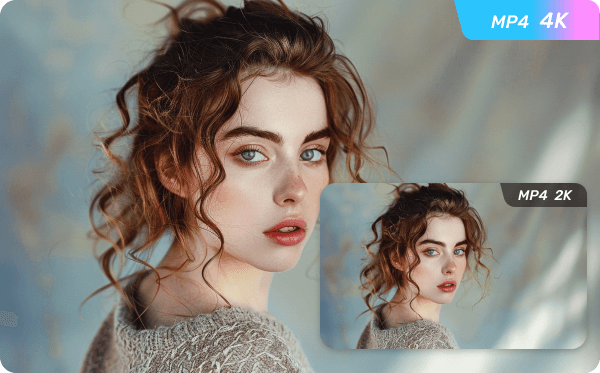
    Fast and Lossless Video Conversion
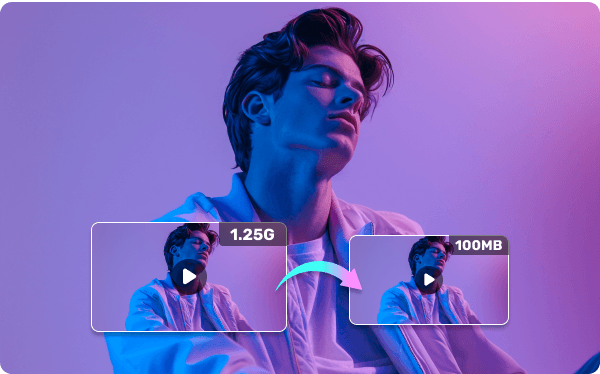
  • AI Compression to Ideal File Sizes

    Reduce the video to the size you need. With the built-in compressor, you can set the exact output size, adjust resolution and format, fine-tune bitrate, and get a platform-ready file in just one click.

    AI Compression to Ideal File Sizes
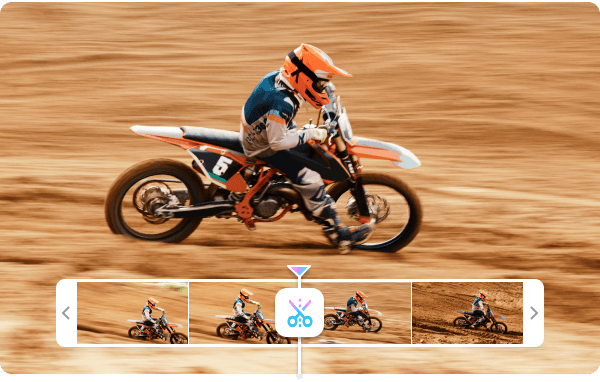
  • Built-in Video Editing Tools

    Trim, crop, merge, and adjust your videos right inside the converter. No additional software required. Quickly remove unwanted sections, refine the length, or combine clips into a ready-to-share video.

    Built-in Video Editing Tools

More Features for Better Video Conversion

More Features for Better Video Conversion
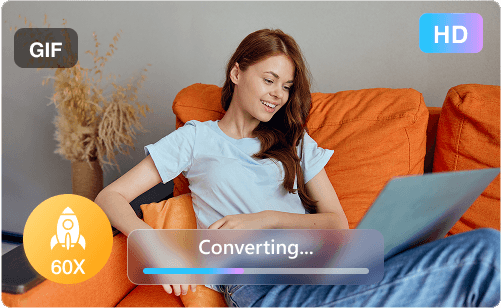
  • Up to 60X Faster

    Convert large video files at up to 60X faster speeds.

  • Batch Conversion

    Import multiple media files and convert them in batch.

  • 1000+ Formats Conversion

    Seamlessly convert any video/audio/image between 1000+ formats.

  • Video to GIF

    Turn any video segment into a looping, shareable GIF for social media.

  • No Ads, Viruses

    Never compromises your device or privacy.

  • Works on Any Device

    Supports output for iPhone, Android, PC and Mac with reliable performance.

AI That Enhances Every Step of Your Video Workflow

  • AI Batch Processing

    AI processes large batches of audio and video files by managing the queue, setting smart priorities, and maximizing overall efficiency.

    AI Batch Processing
  • AI Optimized Video Settings

    No need to manually set bitrate, resolution, or sample rate. The AI engine analyzes your video type and applies the best settings for optimal quality and file size.

    AI Optimized Video Settings
  • Next-Level AI Technology

    The AI models continuously learn from new codecs, encoding methods, and user behavior, making the video converter more accurate and efficient over time.

    Next-Level AI Technology

How to Use the AI Video Converter?

  • Upload Your File

    Open the Video Converter and go to the Converter tab. Click “+ Add File” or drag and drop your files.

  • Select Output Format

    Select an output format you need as target conversion format.

  • Export Converted File

    Click “Convert” to process a single file or “Convert All” for batch conversion. Your optimized video will be ready in seconds.

Your Intelligent Video Assistant

Convert Any Media File Without Hassles

  • Video

    MP4, MKV, MOV, WMA, M4V, AVI, MPG, VOB, WEBM, OGV, 3GP, FLV, F4V, SWF, etc.

  • Audio

    MP3, WAV, M4A, WMA, AAC, FLAC, AC3, M4R, APE, OGG, etc.

  • Image

    JPG, PNG, BMP, TIFF, WEBP, GIF, ICO, SVG, HEIC

See What Our Users Say

FAQs About Hicoo Video Converter

  • What's the best AI video converter?

    Hicoo is the best video converter and compressor for Windows and Mac. It allows batch conversion of HD videos and audio to MP4, MP3, MOV, and more than 500 formats. In addition to the video converter function, it also has a built-in Video/Image Compressor, GIF Converter, Image Converter to help you process videos, audio and images.

  • How to convert video to MP4?

    Step 1. Open the Pro Video Converter and click "+ Add File" or drag and drop your file.
    Step 2. Select MP4 as your output format. You can also crop or trim the video if needed.
    Step 3. Click “Convert” and your MP4 file will be saved.

  • Is Hicoo video converter available for Mac?

    Yes. The Mac version includes the same features as Windows and runs smoothly on macOS. You can download Hicoo for Mac and convert files at impressive speed.

  • How to convert video to MP3?

    Click the “Add File” button and select your video file, and then choose MP3 format. If you want to batch convert videos to MP3 with Hicoo Video Converter, just import all the video files on the application first, select MP3, then click Convert All.

  • Is this Al video converter free to use?

    Yes. You can use our AI Video Converter for free to try core features like converting, compressing, and enhancing your videos. It’s designed to help you get high-quality results quickly without setup or cost.

  • What video and audio formats can Hicoo convert?

    Hicoo supports over 500 video and audio formats, including MP4, AVI, MOV, MKV, MP3, WAV, as well as special formats like FLV, WebM, AAC, and AC3.

Ready for One-Stop AI Video Conversion?

With Hicoo AI Video Converter, you can convert, compress, edit, and refine your media with pro-level quality.